



Fill fields dynamically
Oktul Regex Field for Jira fills a field on the create screen, the portal and transitions from the person, the date, the space and other fields on the form.
What the video shows
- The title: Fill a field from the form.
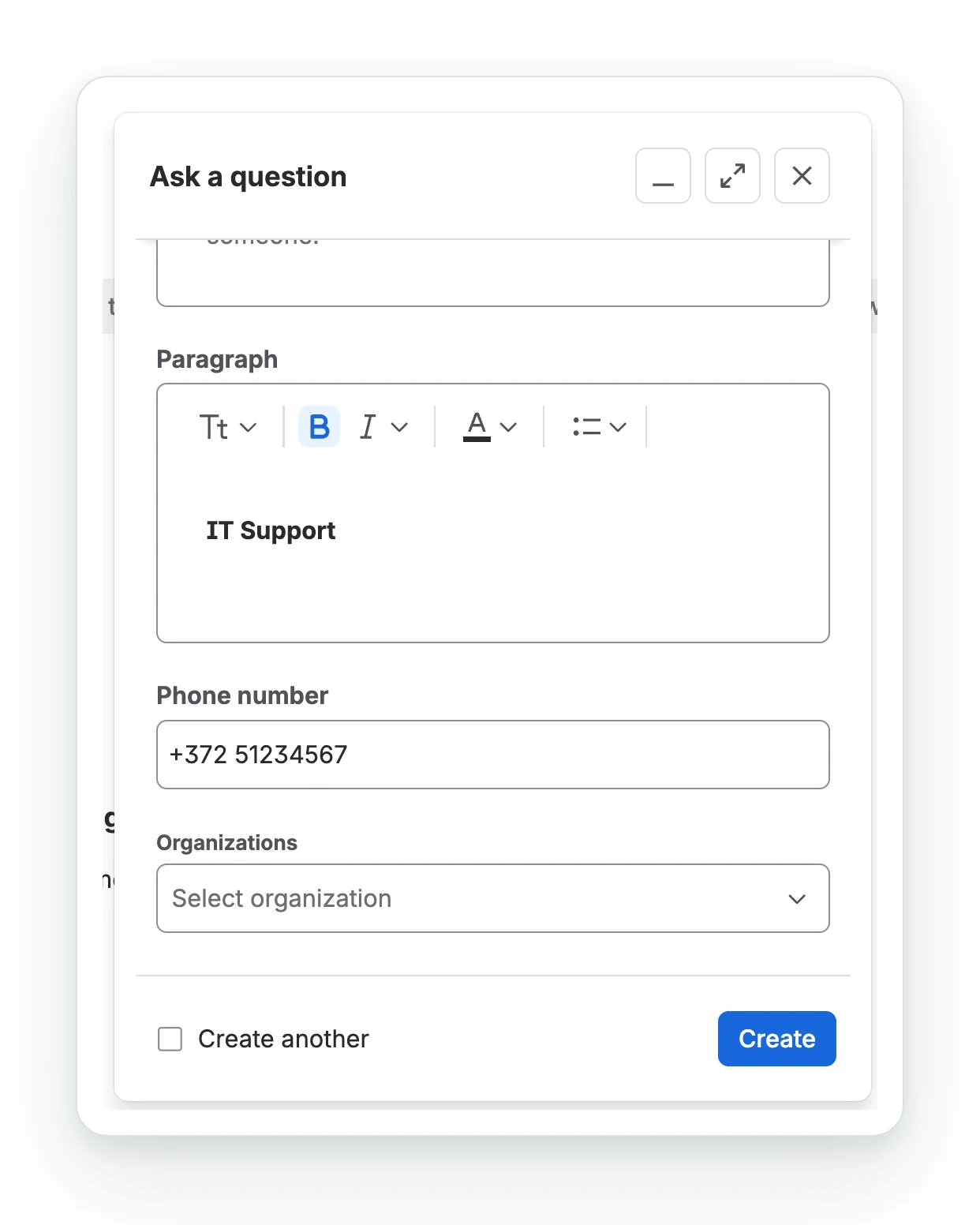
- In a paragraph field's Prefill, type Reported by and the smart value {{user.displayName}} in bold. The preview reads it with your name.
- Smart values lists what a prefill can read: the person, the dates, the space, the work type and other fields.
- Select Save.
- On the create form, Request details opens as Reported by Emma Paris.
- The person adds desk 4.12 before they create the work item.
- Oktul, Atlassian Marketplace Partner.
A prefill fills the field while the form is still open: with the person’s name, today’s date, the space or what they just typed in Summary. The person sees the value and can change it. Jira’s own default is one fixed value per context, and Automation only runs once the work item exists.
Set it up
- Open the field’s context settings: Settings, Work items, Fields, the three dots beside the field, Contexts and default values, Edit custom field config.
- Open Prefill and write the template: a line of text for the single-line field, rich text for the paragraph field. Put each smart value between double braces, without formatting inside the braces.
- Check the preview under the box, which fills the template with your own details, and select Save.
What a template can hold
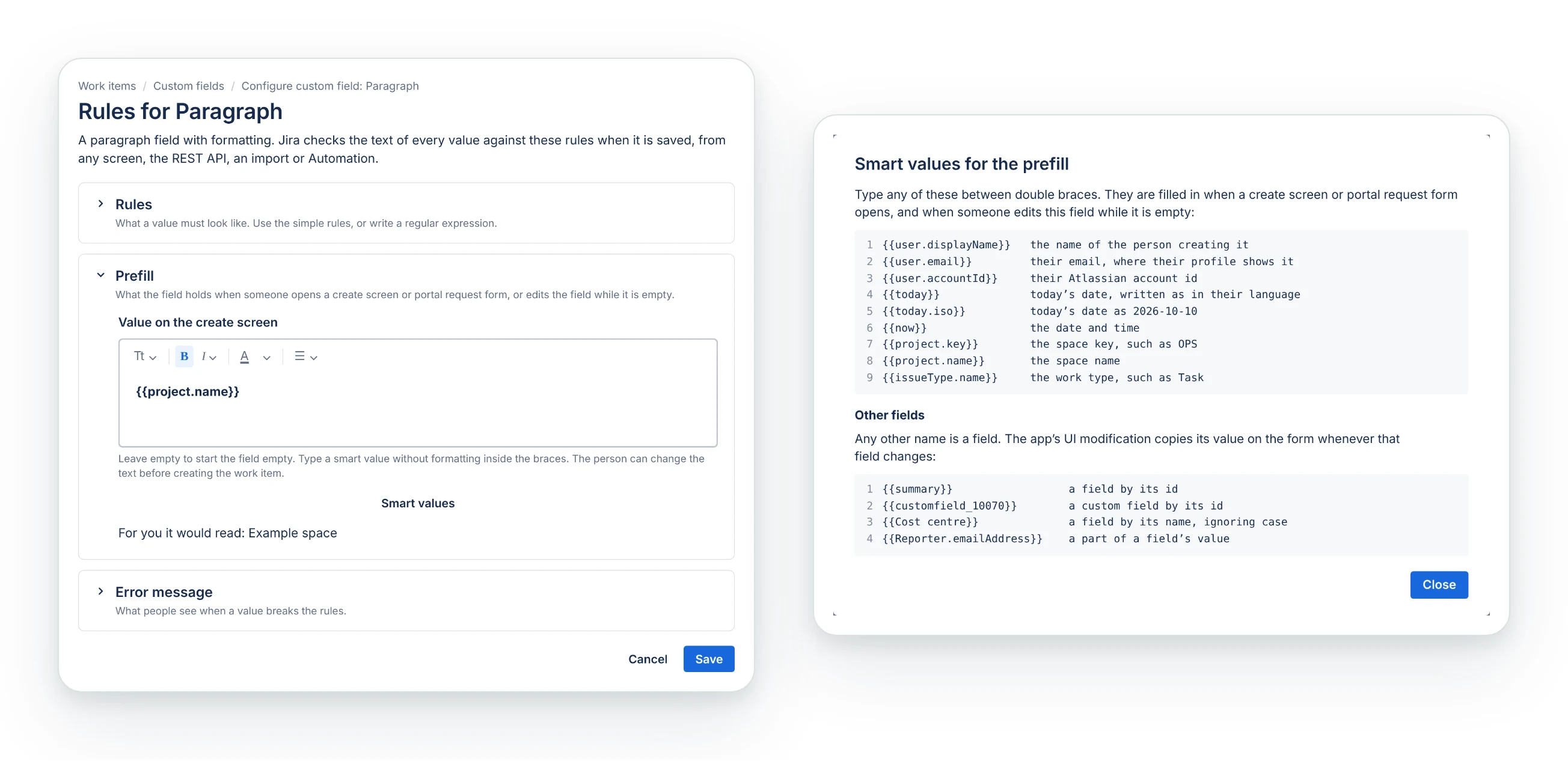
Smart values, under the box, lists what a template can hold. The built-in values:
| Smart value | Filled with |
|---|---|
{{user.displayName}} |
The name of the person creating the work item |
{{user.email}} |
Their email address, where their Atlassian profile shows it |
{{user.accountId}} |
Their Atlassian account id |
{{today}} |
Today’s date, in the date format set under Jira settings, System, Look and feel |
{{today.iso}} |
Today’s date as 2026-10-10 |
{{now}} |
The date and the time, in the site’s date and time format |
{{project.key}}, {{project.name}} |
The space |
{{issueType.name}} |
The work type. Not on a portal request form |
A date in another format takes .format("…") with Java’s date letters, as Look and feel writes
them:
| Smart value | Filled with |
|---|---|
{{today.format("dd.MM.yyyy")}} |
10.10.2026 |
{{now.format("HH:mm")}} |
14:05 |
{{now.format("EEEE d MMMM, h:mm a")}} |
Saturday 10 October, 2:05 PM |
Any other name between double braces is a field on the form:
| Smart value | Filled with |
|---|---|
{{summary}}, {{customfield_10070}} |
A field, by its id |
{{Cost centre}} |
A field, by its name, ignoring case. Two fields with the same name are refused; use the id |
{{Reporter.emailAddress}} |
A part of a field’s value |
{{Related work items}} |
A Work Item Selector field: the work item keys it holds, joined with a comma. Read from the saved work item, so on the work item view and transitions only |
Assets fields cannot be used yet: see Not supported yet.
How the template is checked
- Saving refuses a smart value the app does not know, or fixed text the rules can never accept. It warns when your own details would not fit.
- A value Jira does not share with the person stays empty: a hidden email address, a space a portal customer cannot browse, or the name of an anonymous visitor.
- A filled value that breaks the rules is not used. The field starts empty. A value Jira already put in the field is kept.
- The first create screen after a change can take a few seconds to fill while the app starts.
The app sets itself up wherever the field is. Saved settings reach the forms within a few minutes, and changes to field schemes, field configurations and request types within the hour. Update forms now, under Prefill, does it at once.
Keep in sync
The switch shows while the template names another field, the only case it changes.
Off (the default): the field follows the fields it names on the form it opened on, until the person types in it. A saved value is never overwritten.
On: each smart value that names a field follows that field, on every form, on the work item view and after the work item is saved. Text people type anywhere in the field stays, formatting included. With this template on a paragraph field:
{{summary}}- Summary is Hello, so the field reads
Hello. - The person adds
Worldon a second line. - Summary becomes Bye. The field now reads
ByeandWorld.
If the person edits Hello itself, that smart value stops following and keeps their text. The
other smart values go on. Person and date smart values are filled once. A template that still
holds {{userInput}} is refused on save until it is removed.
Where it fills in
| Screen | What happens |
|---|---|
| Create screen, portal request form | Filled as the form opens. Then it follows the fields it names, each time the person leaves one, until the person changes this field |
| Transition screen | The same, if the field was empty when the screen opened; a value already there is the person’s. With Keep in sync, a saved value is filled again too |
| Work item view | When the person edits the field while it is empty, the editor opens with the template filled in, other fields read from the saved work item. With Keep in sync, a saved value is filled again as the editor opens. Saved when the person saves |
| Automation, a script, the REST API, imports | With Keep in sync, each smart value is filled again when they change its field, unless someone edited its text, and an empty field is filled. An empty field whose template names the person waits until a person makes a change. Saved as the account that made the change, or as the app when that was an app such as Automation. Without Keep in sync, not filled |
Limits
- It fills Oktul Regex Field fields, not Jira’s own fields or another app’s.
- A filled value that breaks the field’s rules is not used, and the field starts empty.
Not supported yet
Two gaps are Atlassian’s to close. Vote on the tickets to move them; FRGE tickets need an Atlassian sign-in.
| What | Why | Atlassian’s tickets |
|---|---|---|
| Assets fields as smart values | Jira passes no Assets field to an app’s UI modification, on any screen, so the app cannot read the object or its attributes. A template naming one leaves that part empty | FRGE-2079 (opens in a new tab), FRGE-2159 (opens in a new tab), ECO-1269 (opens in a new tab) |
| Filling on the work item view without opening the field, and reading another app’s field (such as Work Item Selector) on a create screen or portal form | Jira gives a UI modification no handle on a field an app provides, neither this app’s nor another app’s | FRGE-1220 (opens in a new tab) |
Common questions
- What can a prefill hold?
- Text and smart values: the person, the date, the space, the work type and other fields on the form, each between double braces.
- Can the person change a prefilled value?
- Yes. The value is filled in while the form is open, and the person can edit it before saving.
- Does a prefill follow changes made by Automation or the REST API?
- Yes, with Keep in sync on. A smart value whose text someone edited is left as they wrote it.