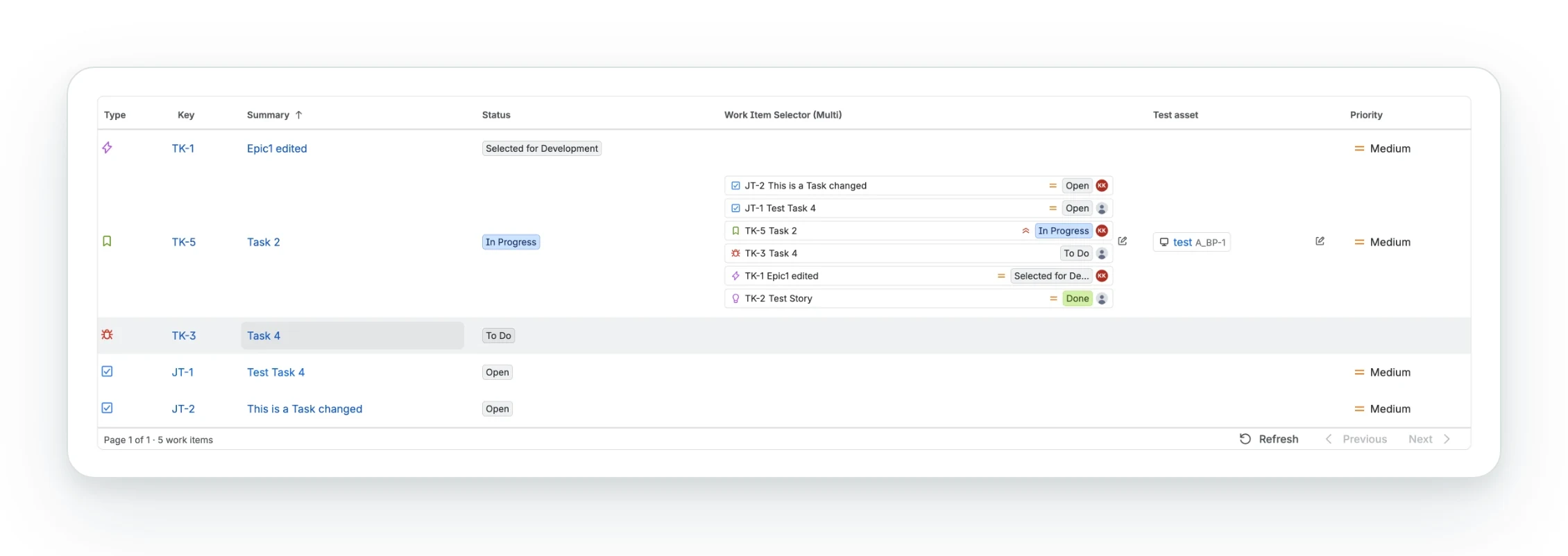



Assets and Work Item Selector fields
Show Jira Service Management Assets objects in a Confluence table of work items, which the built-in Jira macro cannot, and Work Item Selector fields as cards.
Assets and Work Item Selector fields hold references. The macro looks them up after the table loads, so those cells show a spinner for a moment.
Why Confluence’s own macro shows no Assets objects
Confluence’s built-in Jira macro does not show Assets values (CONFCLOUD-80484 (opens in a new tab)). Work Item Macro shows the objects beside their work items. See how the two macros compare.
To add one, select Add column and choose the Assets field. Assets must be on the same site.
Assets fields
Each object is a chip: icon, label (linked to Assets) and key.
Options
| Option | Values | Default |
|---|---|---|
| Show | Label, Object key, Label and key | Label and key |
| Show icon | on or off | on |
| Attribute instead of label | The name of an attribute of the object type, such as Serial number |
none |
With an attribute set, the chip shows its value, or the label when empty. For several attributes, add one column each.
Who sees what
The lookup runs as the reader, who needs the Object viewer role on the schema. Without it, the chip shows the raw workspace and object id as a warning, and the tooltip names the role. A deleted or hidden object shows the same, with not found in the tooltip.
Icons
The app bundles Atlassian’s predefined Assets icons and loads no outside images, which keeps it Runs on Atlassian.
- Uploaded icons show as a generic glyph.
- New predefined icons show the glyph until the app is updated.
- A changed icon shows on the next page view.
Exports
Each object is its linked label and key, with no icon.
Work Item Selector fields
Oktul Work Item Selector for Jira fields are recognised automatically. Each work item is the one-line card that app shows in Jira.
Options
- Show as: Cards, as in Jira (the default) or Keys only, which lists the keys as links and looks nothing up.
- Card fields: up to seven. Work type, key and summary sit left; priority, status and assignee come first on the right, then the rest. Empty means the six defaults.
Jira does not let one app read another’s settings, so set the card fields here.
Inline editing (Advanced) does not apply the selector’s JQL scope or permission mode. See inline editing.
What a card shows
| Field on the card | Shown as |
|---|---|
| Work type, Priority | Jira’s icon, with the name in a tooltip |
| Status | A lozenge in its status category’s colour, cut at 16 characters |
| Assignee and other people | Initials avatars, at most three, then +N. An empty assignee, reporter or creator is Jira’s grey figure, with Unassigned, No reporter or No creator in its tooltip |
| Labels | Tags |
| Assets fields | “N Assets objects”; cards do not look objects up |
| Anything else | One line of text: dates and numbers formatted, rich text’s first line |
A multi select field shows ten cards, then +N more.
A work item the reader cannot browse, or that was deleted, shows its key and Not available.
A moved work item gets a new key, but the field keeps the old one. The card says Not available until the field is set again.
Exports
Each work item is one line: the linked key, then its fields joined with “ · “. Statuses are lozenges; no icons or avatars.