



Configure SignPlus
Set up SignPlus for Confluence: the signing mode and Dokobit token, each site setting and its default, who may delete a signing, and what a space may change.
SignPlus is configured on two screens: a site administrator sets the defaults and decides, setting by setting, whether a space may change each one; a space administrator changes only what the site left open.
| Screen | Where | Who | Tabs |
|---|---|---|---|
| SignPlus global configuration | Confluence Settings, at the bottom of the menu under Apps | Confluence administrators | Dokobit settings, App settings, Dokobit token, Export styling, API access, Webhooks, Logs, Help |
| SignPlus space configuration | Space settings, under Integrations | Space administrators | Dokobit settings, App settings, Export styling, Help |
A change saves as soon as you make it, and a Settings saved message names the setting. Export styling is the exception, with its own Save export styling button, because a document’s look is several settings that belong together.
Before the first real signing
- Choose the signing mode
Dokobit token, then Signing mode. A new installation is on Test, which produces watermarked documents with no legal effect.
- Check the Dokobit settings
Signature level, the formats a signing may use and the signing methods on offer.
- Decide what each space may change
Use the Spaces may change switch beside each setting.
- Style the exported document
At least put your logo on the first page or in the header.
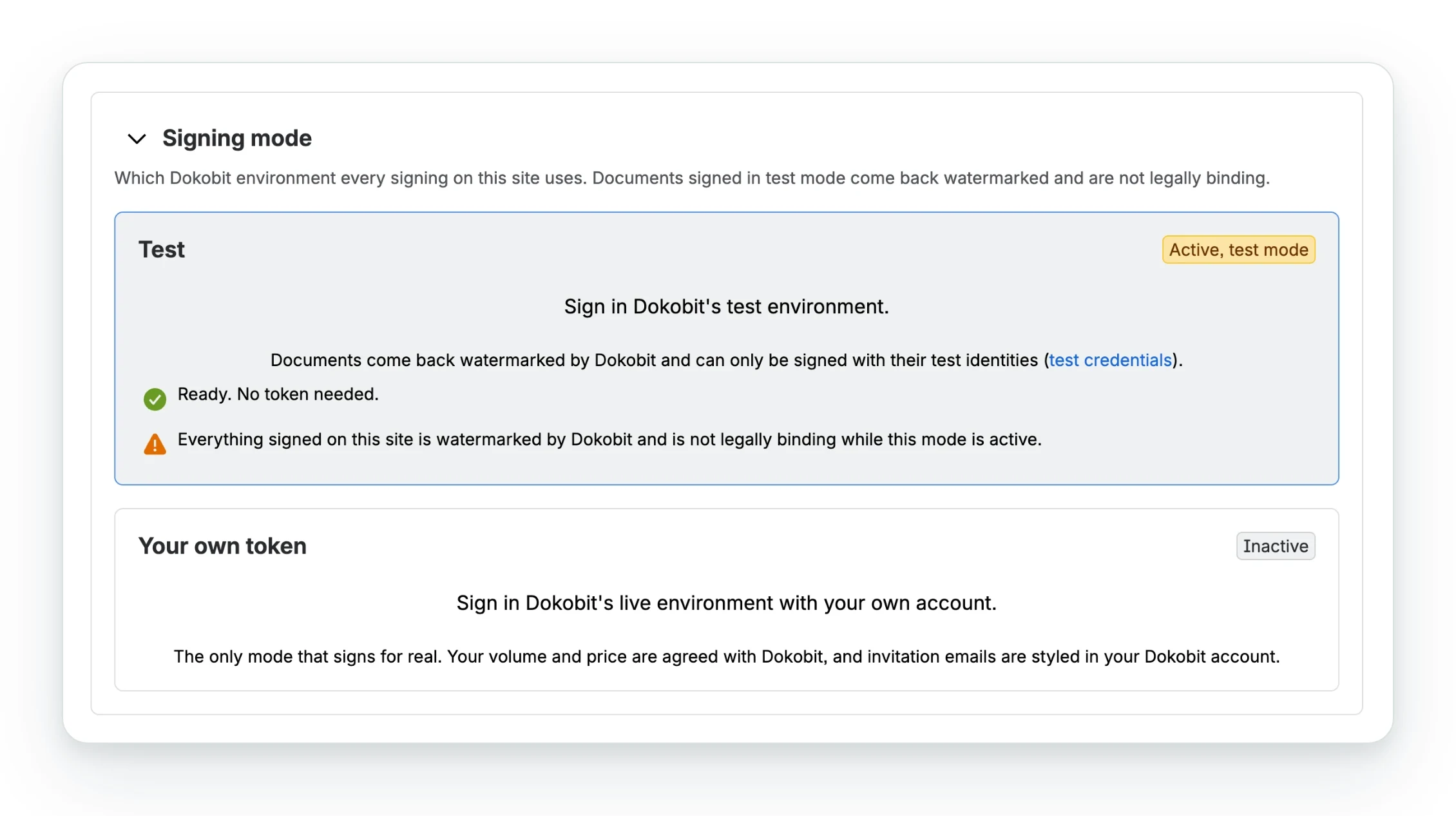
Signing mode
Dokobit token, then Signing mode. Only a site administrator can set it.
| Mode | Signs on | What to know |
|---|---|---|
| Test | Oktul’s account in Dokobit’s test environment | The default, for trying SignPlus. Watermarked, test identities only, not binding. Oktul sees only a count of signings. Keep confidential pages out |
| Your own token | Your own Dokobit account | The only way to sign for real. Paste your Dokobit API token. Style invitation emails in Dokobit |
- SignPlus checks a token with Dokobit before storing it. A token Dokobit refuses is not saved. If Dokobit cannot be reached, the token is saved with a warning that the first signing will show whether it works.
- A token is stored encrypted in Forge’s secret storage and never shown again.
- Oktul does not provide production signing. A legally binding signature is always made on your own Dokobit account.
Test documents carry Dokobit’s watermark and have no legal effect. Change the mode before the first real signing.
What a space may change
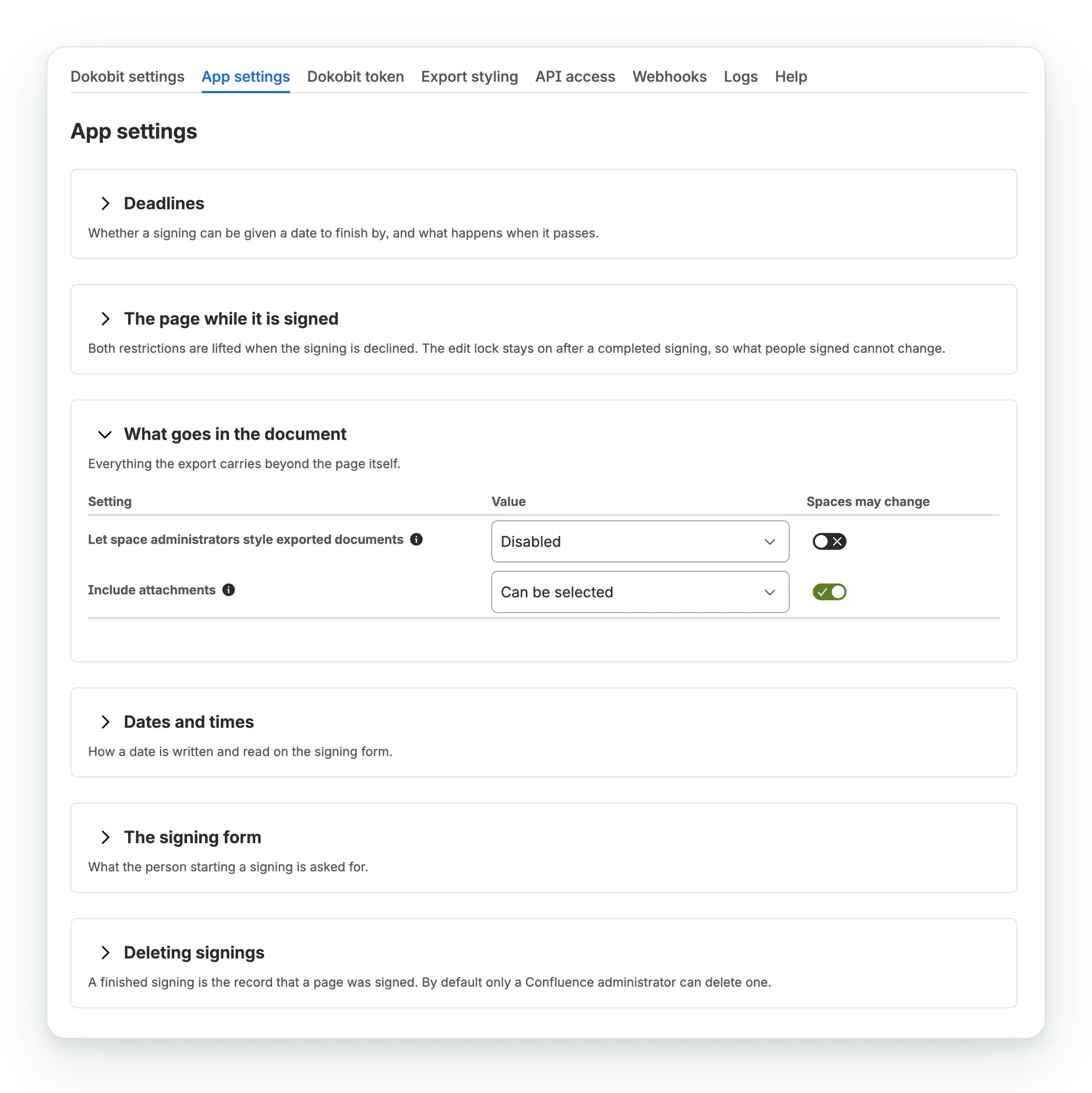
Every setting on Dokobit settings and App settings has a switch in the Spaces may change column, Let each space set this for itself:
- Off: the setting reads Set for the whole site on every space’s screen.
- On: a space administrator can choose a different value for their space.
Who else can delete a finished signing and Spaces automation rules can use are the exceptions: both are always set for the whole site.
Every signing is checked against its space’s settings when it starts, whether from the page, an automation rule or the REST API, so a rule or an integration cannot ask for something the space has ruled out.
Dokobit settings
What Dokobit asks of a signer and how the signed file is produced. Defaults in bold.
Signatures
| Setting | Options |
|---|---|
| E-signature levels | QES only, or QES and AdES |
| Disabled signing methods | Empty, or any of the methods Dokobit offers: Mobile SK, Mobile Audkenni, Smart-ID, Smart card, eParaksts Mobile, BankID (Norway), BankID (Sweden), Audkenni App, FTN, MitID, Electronic ID, itsme, iDIN, Swisscom, SMS OTP and NBID |
| Signing with video identification | Disabled, or Enabled |
QES has the legal effect of a handwritten signature under eIDAS. AdES is a lower level.
Document format
| Setting | Options |
|---|---|
| Document formats | Which formats a signing may use: ASiC-E and PDF, plus BDoc, EDoc, ADoc BeDOC and ADoc CeDOC |
| Default document format | ASiC-E |
ASiC-E is one .asice container holding the PDF and its signatures, which DigiDoc4 opens. A
signed PDF holds them inside.
Signature annotation
What Dokobit stamps on a signed PDF.
| Setting | Options |
|---|---|
| Annotation position (PDF only) | First page (top), First page (bottom), Last page (top), Last page (bottom) or No annotation |
| Personal code in the annotation (PDF only) | Not visible, or Visible |
App settings
What the person starting a signing sees, and what happens to the page. Defaults in bold.
Can be selected leaves the choice to the person starting the signing. Always and Never decide for them, and the form says so (While this signing runs, …).
Deadlines
| Setting | Options |
|---|---|
| Signing deadline | Optional, Required or Disabled. Dokobit sends participants who have not signed one email reminder 24 hours before the deadline |
| Strict deadline | Can be selected, Always or Never. When strict, the document cannot be signed after the deadline |
The page while it is signed
| Setting | Options |
|---|---|
| Make page read-only | Can be selected, Always or Never. Only SignPlus can edit the page once the signing starts |
| Restrict page viewing to signers and viewers | Can be selected, Always or Never. Only the person who started it and the people added to it can open the page while it runs |
- Declined: both lift.
- Completed: viewing lifts, the edit lock stays, so what was signed cannot change.
- A space administrator can always remove either. See what happens to the page.
What goes in the document
| Setting | Options |
|---|---|
| Let space administrators style exported documents | Disabled, or Enabled. The master switch for the space overrides described in export styling |
| Include attachments | Can be selected, Always or Never. When the choice is left open, the signing form offers it switched on. Only the attachments the page body refers to are added: see attachments |
Dates and times
| Setting | Options |
|---|---|
| Date and time format | Confluence default, which follows each reader’s own Confluence language, or a specific language and country |
| First day of the week | Monday, or any other day |
The signing form
| Setting | Options |
|---|---|
| Add the initiator as a viewer automatically | Enabled, or Disabled. The person who starts a signing is then told when it completes |
| Message to signers | Optional, Required or Disabled. The message goes in Dokobit’s invitation email |
| Default message | The text the message starts with. {{initiator}} inserts the name of the person who started the signing |
Deleting signings
| Setting | Options |
|---|---|
| Who else can delete a finished signing | Empty, or any of: Space administrators, People who can edit the page, The person who started the signing |
By default only a Confluence administrator can delete a finished signing, because its record is what says the page was signed and whether it has changed since. This setting widens that for the whole site; no space can change it.
Deleting removes the document from Dokobit for every signer and lifts the edit lock. The signed file stays on the page. Cancelling a running signing has its own rule: see cancelling or deleting a signing.
The other tabs
- Export styling: the typeface, page, first page, header and footer of every exported document. See style the exported document.
- API access: the address the REST API answers on for this site, how to get a credential, and a reference of every endpoint. See REST API.
- Webhooks: where to send a notification when a signing completes or a signed page is edited. See automation and webhooks.
- Logs: the latest 500 REST API requests, webhooks and automation actions, with the account and outcome. Never a token.
- Help: links to this documentation, to the Help Center and to oktul.com.
Until Jira is connected, the global screen says so and links to Atlassian Administration. See connecting Jira.
Common questions
- Where are the SignPlus settings?
- Site settings are in Confluence Settings, under Apps, as SignPlus global configuration. Space settings are in Space settings, under Integrations.
- How do I switch SignPlus from test to real signing?
- Open Dokobit token, then Signing mode, choose Your own token and enter the API token from your Dokobit account.
- Are signed documents in Test mode legally binding?
- No. They carry Dokobit's watermark, can only be signed with Dokobit's test identities and have no legal effect.
- Can a space override the site's settings?
- Only the settings the site administrator opened to spaces with Spaces may change.
- Who can delete a finished signing?
- A Confluence administrator, plus whoever the site's Who else can delete a finished signing setting adds.
Related
A problem or a question? Write to support@oktul.com or open a request in the Help Center (opens in a new tab).