



Sign a page
How to sign a Confluence page with SignPlus and a qualified electronic signature, for named people or a whole group, and what each option does.
What the video shows
- The title: Send a page for signing.
- Select Sign this page in the byline. The SignPlus panel opens.
- Select Add signer and add Mari Tamm as an internal user, then the Finance group.
- Turn on Make page read-only and Signers must sign in the order listed.
- Select Start signing. A flag says the signing has started.
- On Dokobit's signing page, the signer enters their personal code, selects Sign document and confirms the verification code.
- Back on the page, the byline reads Page signed and valid.
- Oktul, Atlassian Marketplace Partner.
To sign a Confluence page, open it, select Sign this page under the title, add the signers and select Start signing. Dokobit then invites each signer, and the signed document is attached to the page when the last one signs.
The panel has up to three tabs:
| Tab | Shows |
|---|---|
| Latest signing | The most recent signing on this page and whether the page still matches it. Only once there is one |
| New signing | The form that starts a signing |
| All signings | Every signing on this page, newest first |
| To | You need |
|---|---|
| Start a signing, or download the page as PDF | Edit permission on the page |
| Open the panel and read its signings | View permission on the page |
New installations sign in test mode: watermarked, not binding. A site administrator changes it under signing mode.
Start a signing
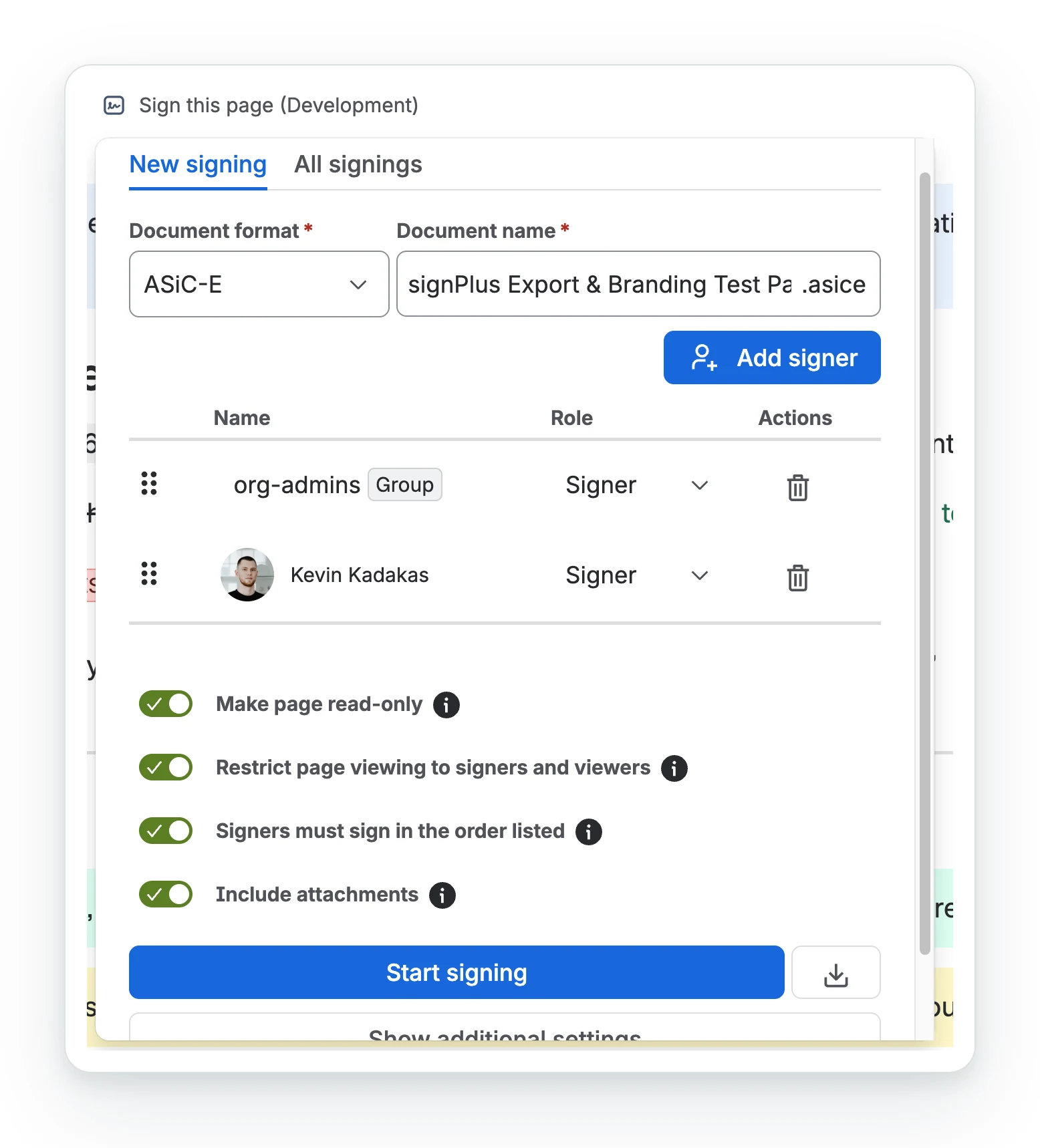
- Open New signing
The panel opens on New signing when the page has no signing yet.
- Check the document format and name
Document format appears when the space allows more than one. Document name becomes the signed file’s name.
- Add signers
Select Add signer, choose Internal user, External partner or Group, and give each a role.
- Choose the options
Switches under the list. Show additional settings opens the message and due date.
- Select Start signing
It runs in the background. You can close the panel.
Who can sign
Add signer opens a dialog with three tabs.
| Tab | Adds | What you enter |
|---|---|---|
| Internal user | One person with a Confluence account | Their name, picked from your site’s users, and a role |
| External partner | One person outside your site | Full name, email address and a role. Dokobit sends the invitation to that address |
| Group | Everyone in a Confluence group | The group, picked from the groups you belong to, and one role for all of its members |
| Role | What it means |
|---|---|
| Signer | Receives an invitation from Dokobit and signs |
| Viewer | Is never asked to sign, and is notified once everyone has signed |
- A group is expanded when the signing is sent, not when you add it. Every member is invited with the group’s role.
- A person in a group and also added on their own is invited once, with their own role.
- A member Confluence gives no email address for is left out. View signing details shows how many members of each group were invited.
- You can only choose groups you belong to.
- A signing reaches at most 25,000 people once groups are expanded. At least one must be a signer, and nobody can be added twice.
Change a role in the Role column, and remove a row with the bin under Actions.
By default you are added as a viewer, so Dokobit tells you when everybody has signed.
The options
| Option | What it does |
|---|---|
| Make page read-only | Only SignPlus can edit the page. Stays after completion; lifts if declined or cancelled |
| Restrict page viewing to signers and viewers | Only you and the people added can open the page until it finishes |
| Signers must sign in the order listed | Each signer waits for the one above. Drag rows to order |
| Include attachments | Adds files the page body refers to, each on its own page. Not spreadsheets or SignPlus’s own files. See attachments |
Show additional settings opens three more, where the space allows them:
| Option | What it does |
|---|---|
| Message in the invitation email | Goes in Dokobit’s email. The site can prefill, require or remove it |
| Due date and Due time | In your Atlassian account’s time zone, or your browser’s |
| Refuse signatures after the due date | No signing after the due date |
Where the space has decided an option, the switch is replaced by a sentence such as While this signing runs, only SignPlus will be able to edit this page.
Restricted viewing covers Confluence accounts and groups, up to 200 entries (a group counts as one). External partners get the document from Dokobit.
While SignPlus sends it
After Start signing, the panel shows Sending for signing. The signing runs in the background, so you can close the page.
- A few people take seconds; a group of thousands takes minutes, because each member’s address is read from Confluence and the invitations go to Dokobit in batches.
- When it is sent, a Signing started message appears and the panel moves to Latest signing.
- A signing goes to everybody or to nobody. If Dokobit refuses a batch part way through, the signing is withdrawn from everyone it reached and the panel shows Not sent for signing with the reason.
SignPlus reads the page as you, so a Jira table prints what you can see. Download the page as PDF first to check.
Download the page as PDF
The download button beside Start signing shows you the document before anyone signs it. It
exports the page with the space’s export styling, without starting a signing, usually in 5 to 15
seconds, and also attaches the PDF to the page. Its {documentName} placeholder prints the page
title; the signed document prints the Document name you chose.
What the export can and cannot reproduce is listed in what the document contains.
Your signings
SignPlus: your signings, in the Apps menu, lists every signing you started, with its status. Actions downloads the document or opens its details.
Common questions
- Who can start a signing?
- Anyone with edit permission on the page. Anyone who can view it can read its signings.
- Can a whole Confluence group sign?
- Yes. Add it on the Group tab. Every member is invited when the signing is sent, up to 25,000 people, and you can only choose groups you belong to.
- Can someone outside the company sign?
- Yes. Add them as an External partner with their name and email address. Dokobit sends them the invitation and the document.
- Can I close the page after starting a signing?
- Yes. The signing is prepared and sent in the background.
- How do I check the document before it is sent?
- Use the download button beside Start signing. It exports the page exactly as the signing will, without starting one.
Related
- What a signer sees
- After signing: check, download, cancel
- Configure SignPlus
- What the document contains
A problem or a question? Write to support@oktul.com or open a request in the Help Center (opens in a new tab).