



Style the exported document
Give signed and exported Confluence documents your corporate visual identity: typeface, first page, header, footer, your own CSS, and what a space may restyle.
What the video shows
- The title: Style your documents.
- In SignPlus global configuration, Export styling, choose Open Sans as the font. The preview is set in it.
- Under First page, turn on Add a first page to every document. The preview shows the cover.
- Under Footer, select Add a part, type Version {pageVersion} and set it to Centre. The preview's footer reads Version 7.
- Select Save export styling. A flag says the settings are saved.
- The exported document opens with the cover, and its pages carry the new footer.
- Oktul, Atlassian Marketplace Partner.
Export styling, on the global settings screen, sets the look of every signed or downloaded document. Five sections: Type and page, First page, Header, Footer and Advanced. Select Save export styling to apply.
The preview beside First page, Header and Footer matches the PDF’s sizes and placement, in the nearest font your browser has. Download a PDF from the signing panel to see the real type.
Signed documents stay as they are. Restyling never makes a signed page read as modified.
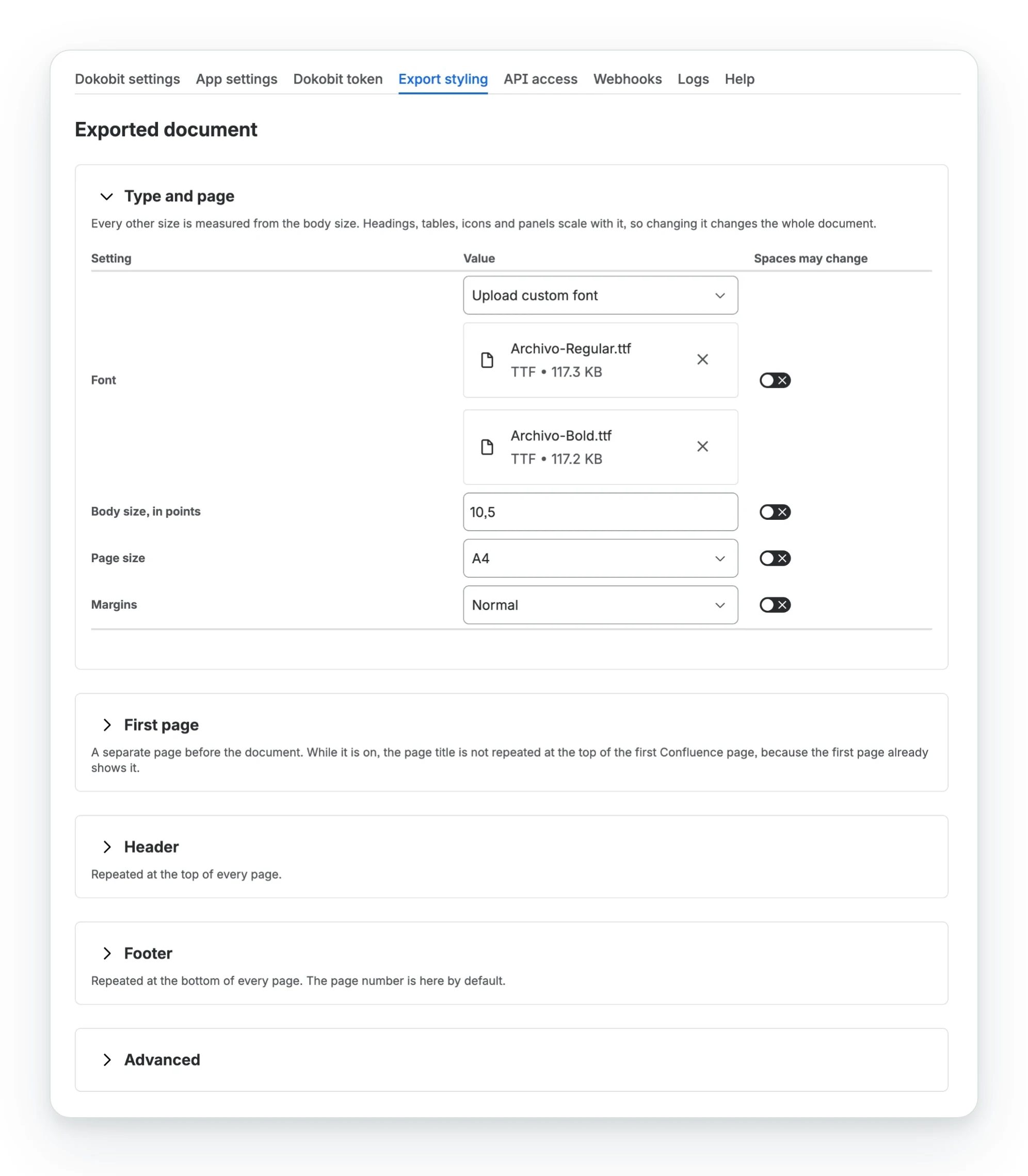
Type and page
| Setting | Options |
|---|---|
| Font | Roboto, Open Sans or Noto Serif, or Upload custom font (.ttf or .otf, up to 350KB). Upload the bold face is optional; without it, bold uses the regular face. Italic is drawn upright |
| Body size, in points | 6 to 18, 10.5 by default (Confluence’s). Everything scales with it |
| Page size | A4, or Letter |
| Margins | Narrow, Normal or Wide |
Header and footer
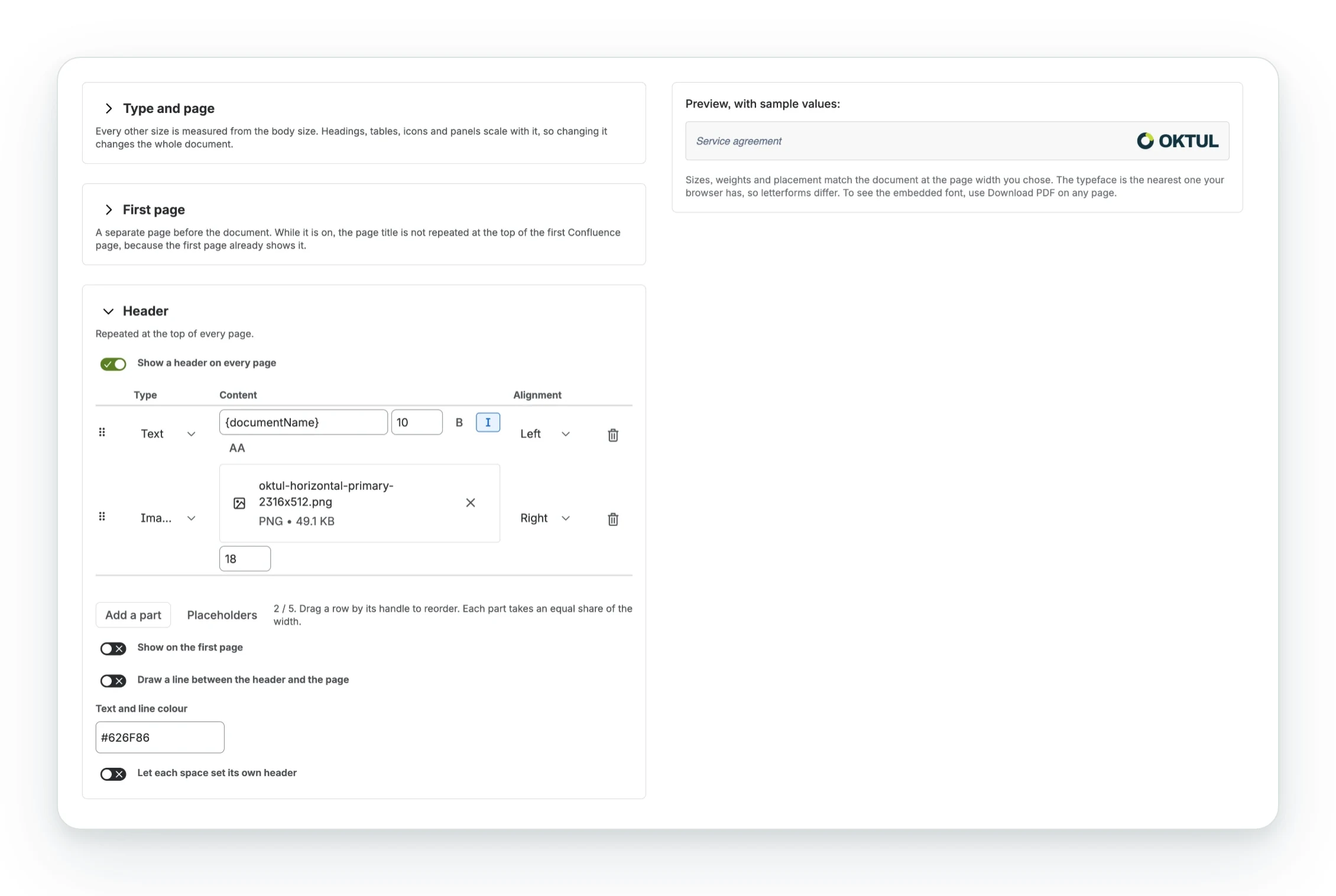
Each band is built from parts that share the width equally:
- Text: any wording and placeholders, with size, alignment and style.
- Image: a PNG or JPEG up to 150KB, such as a logo, with a height in points.
| Setting | Does |
|---|---|
| Show a header / footer on every page | Turns the band on |
| Drag handle | Reorders parts |
| Draw a line between the header and the page | Adds a hairline rule |
| Show on the first page | Also draws it on the first page |
| Text and line colour | A hex value; default #626F86 |
By default the header is off and the footer shows {pageNumber} / {pageCount}, centred.
First page
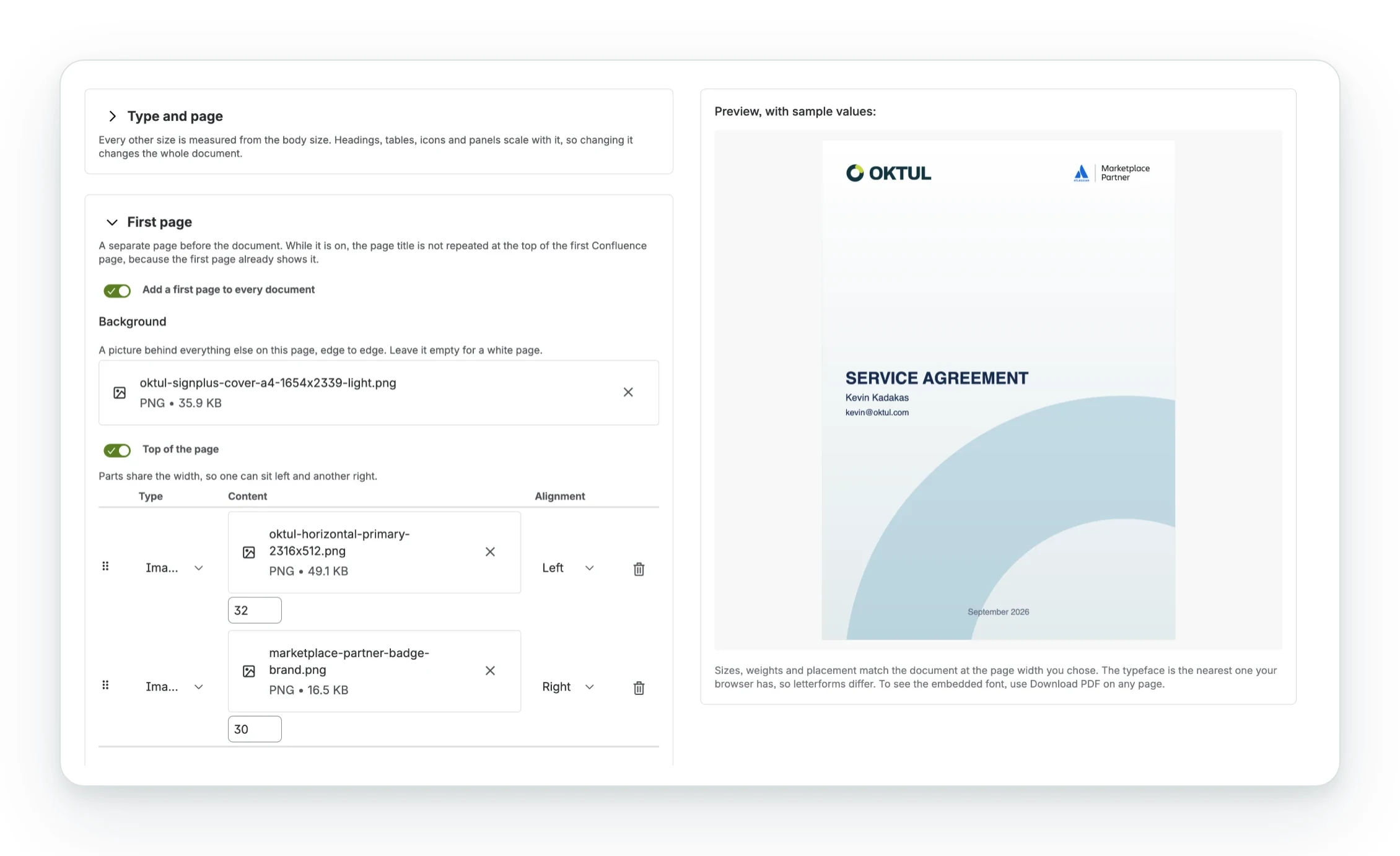
Add a first page to every document adds a cover page:
- Top and bottom: parts side by side, like the header.
- Middle: lines down the centre, each with its own size and alignment.
- Text colour per area, as hex.
- Background: a PNG or JPEG up to 350KB, edge to edge. 1654 x 2339 pixels fits A4; other sizes are cropped.
The default shows the document name, author and date. With a first page, the page title is not repeated on the next page.
Placeholders
Type these into a text part. Placeholders, beside Add a part, lists them on screen.
| Type this | And it becomes | For example |
|---|---|---|
{pageNumber} |
The number of the page it is drawn on | 3 |
{pageCount} |
How many pages the document has | 12 |
{documentName} |
The name the signing was given, or the page title in a download | Service agreement |
{pageTitle} |
The Confluence page’s title | Supplier terms |
{spaceName} |
The space the page lives in | Legal |
{pageVersion} |
The version this document was made from | 7 |
{date} |
The date the document was exported, written the way the site writes dates | 19/09/2026 |
{date.year} |
The year alone | 2026 |
{date.month} |
The month by name, in the site’s own language | September |
{date.day} |
The day of the month alone | 19 |
{time} |
The time the document was exported | 09:24 |
{author} |
Who created the Confluence page | Mari Tamm |
{author.name} |
The same as {author} |
Mari Tamm |
{author.email} |
The author’s email address | mari.tamm@example.com |
Put {pageVersion} in the footer: it is the version the signature and page hash belong to.
Your own CSS
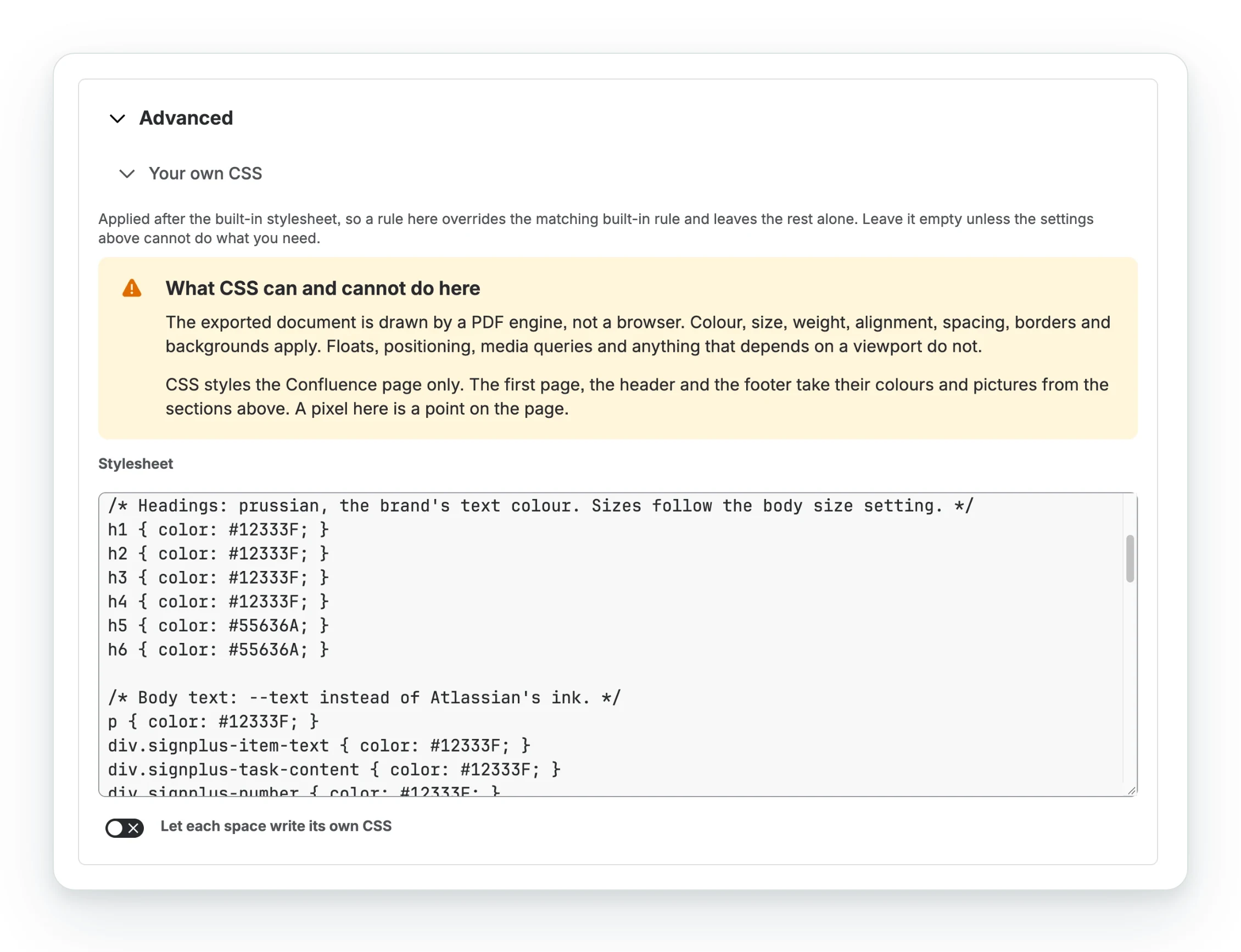
Under Advanced, a stylesheet applied after the built-in one. Use it only when the settings above are not enough.
- Works: colour, size, weight, alignment, spacing, borders, backgrounds.
- Does not: floats, positioning, media queries, viewports.
- Styles the page body only, not the first page, header or footer.
- 1px is 1pt.
What a space may change
Nothing, until a site administrator allows it:
- Turn on Let space administrators style exported documents under App settings.
- Then allow each control, such as Let each space set its own first page. You can keep one font everywhere and still let spaces add their own logo.
Controls a space cannot change are greyed out on its screen.
Related
A problem or a question? Write to support@oktul.com or open a request in the Help Center (opens in a new tab).